Docker Compose for DevOps Engineers
Day 18 : #90DaysOfDevOps Challenge

Docker Compose
Docker Compose is a tool that allows you to define and manage multi-container Docker applications. It uses a YAML file to define the services, networks, and volumes required for the application, making it easy to spin up and manage complex container-based environments.
For example:
If you have an application that requires an NGINX server and a Redis database, you can create a Docker Compose file that can run both containers as a service without the need to start each one separately.

Working of Docker Compose
Using Docker-Compose is essentially a three-step process:
Define your app’s environment with a
Dockerfileso it can be reproduced anywhere.Define the services that make up your app in
docker-compose.ymlso they can be run together in an isolated environment.Run
docker compose upand the Docker compose command starts and runs your entire app. You can alternatively rundocker-compose upusing Compose standalone(docker-composebinary).
Key features of Docker Compose
Have multiple isolated environments on a single host
Compose uses a project name to isolate environments from each other. We can make use of this project name in several different contexts.
The default project name is the basename of the project directory. You can set a custom project name by using the -p command line option or the COMPOSE_PROJECT_NAME environment variable.
The default project directory is the base directory of the Compose file. A custom value for it can be defined with the --project-directory command line option.
Preserves volume data when containers are created
Compose preserves all volumes used by the services. When docker compose up runs, if it finds any containers from previous runs, it copies the volumes from the old container to the new container. This process ensures that any data you’ve created in volumes isn’t lost.
Only recreate containers that have changed
Compose caches the configuration used to create a container. When you restart a service that has not changed, Compose re-uses the existing containers. Re-using containers means that you can make changes to your environment very quickly.
Supports variables and moving a composition between environments
Docker Compose supports the use of environment variables to configure your containers at runtime. You can specify environment variables directly in the docker-compose.yml file or use an external .env file to manage them.
This makes it easy to configure your containers for different environments without modifying the underlying configuration file. Additionally, Docker Compose provides support for managing sensitive data, such as passwords or API keys, using Docker secrets.
Common use cases of Docker Compose
Docker Compose is widely used for various use cases, especially in scenarios where you need to manage multi-container applications and their dependencies. Here are some common use cases where Docker Compose can be beneficial:
Development environments
When you’re developing software, the ability to run an application in an isolated environment and interact with it is crucial. The Compose command line tool can be used to create the environment and interact with it.
The Compose file provides a way to document and configure all of the application’s service dependencies (databases, queues, caches, web service APIs, etc). Using the Compose command line tool you can create and start one or more containers for each dependency with a single command (docker compose up).
Automated testing environments
An important part of any Continuous Deployment or Continuous Integration process is the automated test suite. Automated end-to-end testing requires an environment in which to run tests.
Compose provides a convenient way to create and destroy isolated testing environments for your test suite.
By defining the full environment in a Compose file, you can create and destroy these environments in just a few commands.
Prototyping and Proof of Concepts
Docker Compose enables rapid prototyping and proof of concepts by allowing one to define and manage the required services in a single configuration file.
It helps in quickly spinning up complex environments with multiple containers, allowing developers and teams to experiment, validate ideas, and iterate faster.
Basic Commands in Docker Compose
Command | Explanation |
Docker Compose up | Start all services |
Docker Compose down | Stop all services |
pip install -U Docker-compose | Install Docker Compose using pip |
Docker-compose-v | Check the version of Docker Compose |
Docker-compose up -d | Run Docker Compose file |
Docker ps | List the entire process |
Docker Compose up -d -scale | Scale a service |
Docker Compose.yml | Use YAML files to configure application services |
YAML
YAML stands for YAML Ain't Markup Language
YAML is a human-readable data serialization format used to represent structured data in a simple and easily understandable way. It can be understood as a way to write down information in a format that both humans and computers can read and understand.
YAML is often used for configuration files, data exchange between systems, and defining complex structures. It's commonly used in various programming languages and tools, including Docker Compose.
YAML files use a .yml or .yaml extension.
The syntax of the YAML file is:
keyword: argument
Example of a YAML file:
name: Bhaarat A
age: 45
email: ahirebn2@gmail.com
Task-1:- Running Multiple Containers using Docker Compose
Step 1:- First we need to clone the docker image from the docker hub by using the below command
git clone https://github.com/bharatdevops-bn4/react_django_demo_app.git
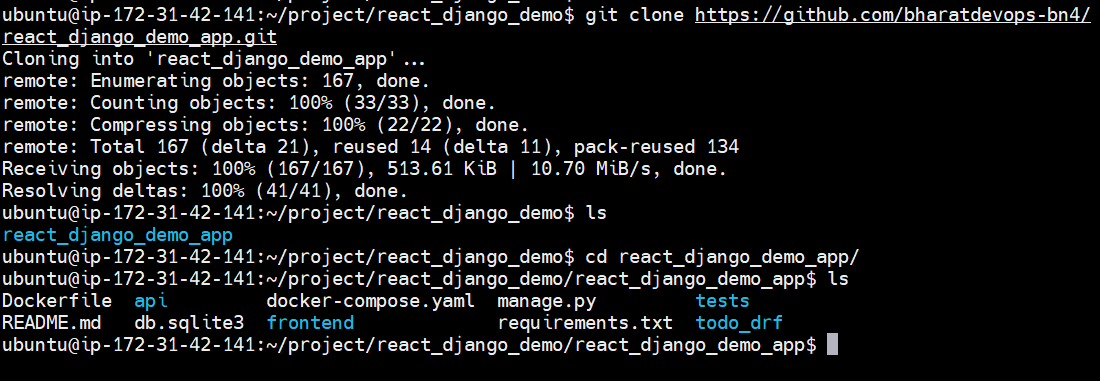
Step 2:- Now we need to use docker-compose in the Linux machine, By the below command
sudo apt-get install docker-compose -y
Step 3:- Using the Vim editor we need to create a docker-compose file
version: '3.9'

services:
  web:
    image: bharat3006/react_django_app:latest
    ports:
      - "8001:8001"
Step 4:- Now we need to start the container using the below command
sudo docker-compose up -d

Step 5:- Now we need to search in the web browser along with the ipv4 address and port number

Step 6:- If we need to down or close the application then need to use the below command
sudo docker-compose down
Task 2:-
Pull a pre-existing Docker image from a public repository (e.g. Docker Hub) and run it on your local machine.
Run the container as a non-root user (Hint- Use
usermodcommand to give the user permission to docker).Make sure you reboot the instance after giving permission to user. - Inspect the container's running processes and exposed ports using the docker inspect command.
Use the docker logs command to view the container's log output.
Use the docker stop and docker start commands to stop and start the container.
Use the docker rm command to remove the container when you're done.
Pull a pre-existing Docker image from a public repository (e.g. Docker Hub) and run it on your local machine
I am pulling the Nginx image. and running the container.
 docker pull nginx
 docker run -d -p 8080:80 nginx
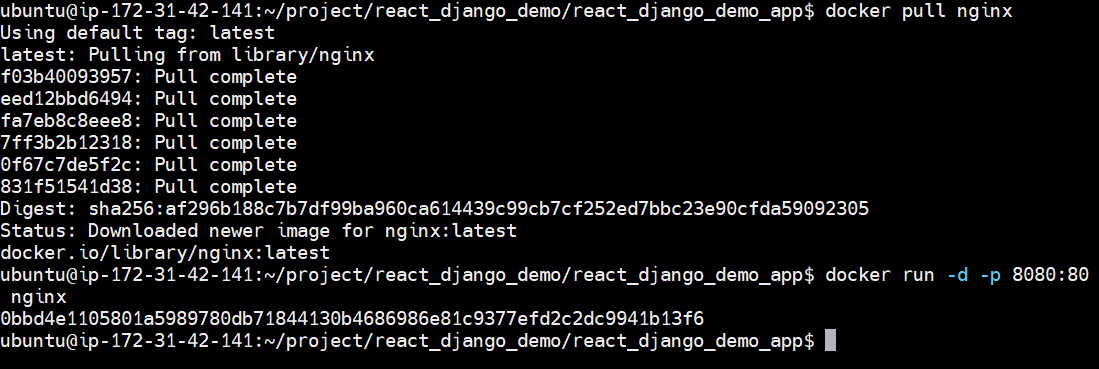
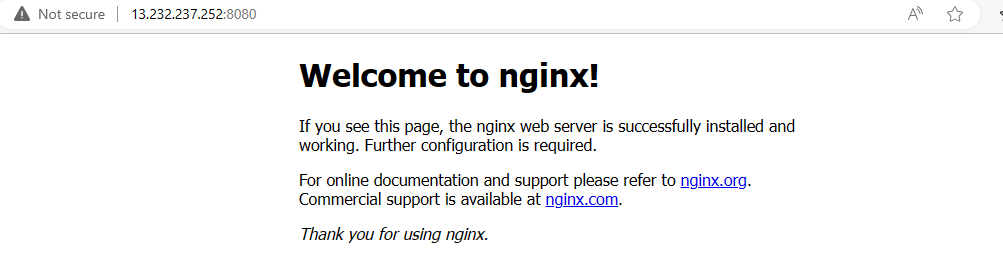
Run the container as a non-root user (Hint- Use usermod command to give the user permission to docker). Make sure you reboot the instance after permitting the user.
To run the container as a non-root user and use the docker commands without sudo, we need to give the user permission to docker using the following command and then reboot the system:
    sudo usermod -aG docker ubuntu
    sudo reboot
Inspect the container's running processes and exposed ports using the docker inspect command
The docker inspect command is used to retrieve detailed information about Docker objects such as containers, images, networks, and volumes.
    docker images
    docker inspect nginx
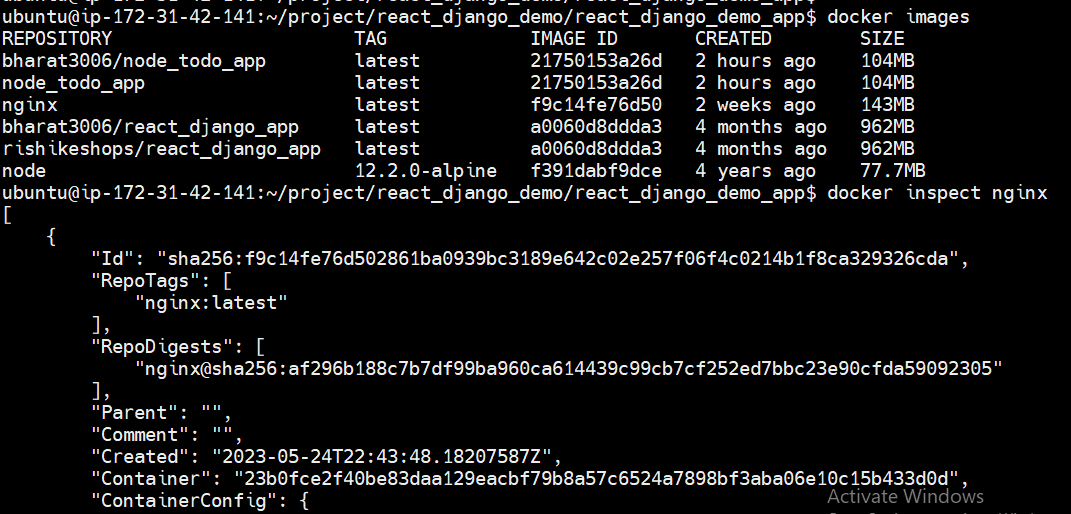
The output of docker inspect command has various details in JSON format. Look for the following sections to use custom formatting and inspect running processes and exposed ports:
"State"section: This section provides information about the container's current state, including whether it is running or stopped."NetworkSettings"section: Here, you can find details about the container's network configuration, including the IP address and exposed ports.
docker inspect --format='{{ .State }}' 1c9f2214db39
Use the docker logs command to view the container's log output.
docker logs <container_id>
Use the docker stop and docker start commands to stop and start the container.
    docker stop cont_id
    docker start cont_id
Use the docker rm command to remove the container when you're done.
We cannot remove a running container. Hence, either we need to stop the container and then delete the container or perform the forceful removal of the container. Let's forcefully remove the container:
docker rm -f container_id
This will remove the nginx container from your local machine
Thank you for reading!!!
~Bhaarat


